
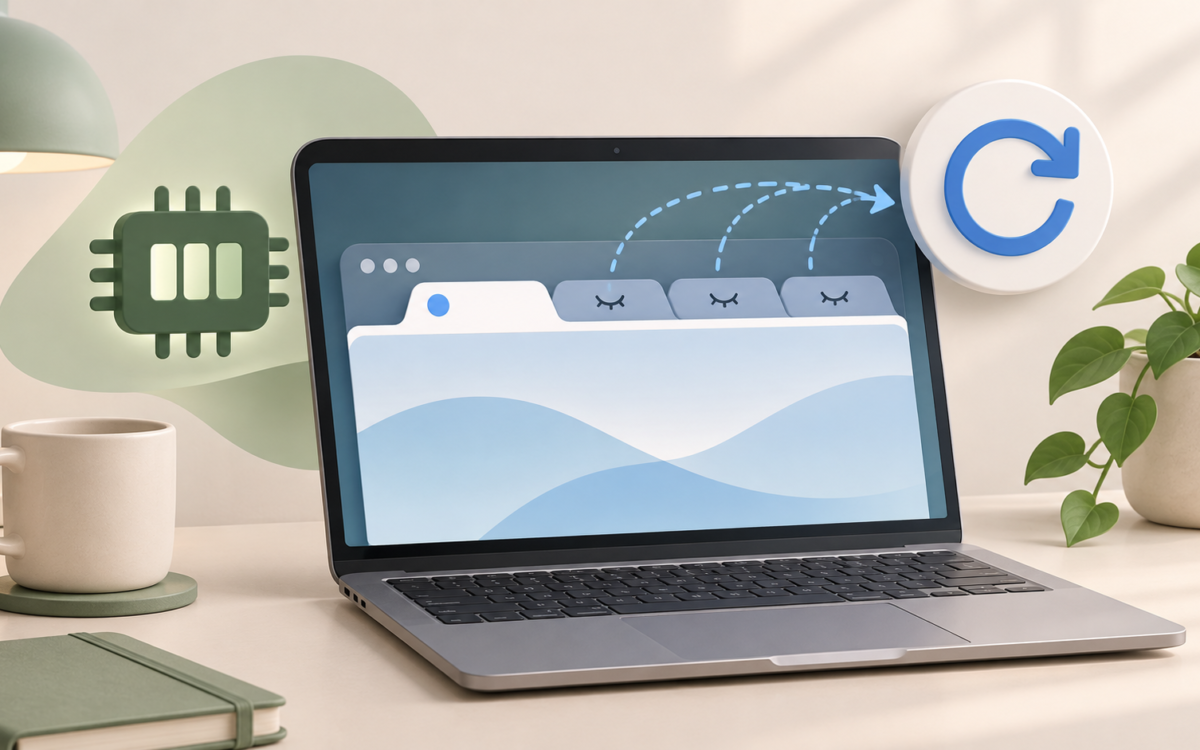
When a Chrome tab reloads after you return to it, Memory Saver is one setting to inspect. Google documents that Chrome can deactivate inactive tabs to release memory and reload them when selected again. Start by checking this setting if the symptom appears after leaving a tab in the background. Chrome performance guide
Find the desktop setting
Open Chrome’s menu, choose Settings, then Performance. Memory Saver has Moderate, Balanced and Maximum levels. Google describes Moderate as a longer wait, Balanced as an optimal wait, and Maximum as a shorter wait before tab deactivation. These desktop performance controls do not apply to Chrome on Android or iOS. Chrome performance guide
Keep an important site active
In Performance, find Always keep these sites active and choose Add. Select an open site or enter its address manually. Use the specific site you need, such as the web app you return to throughout the day. This exception addresses Memory Saver deactivation; other reload causes need their own investigation. Chrome performance guide
Before changing the setting, write down the current level and one affected site. Make one targeted change, return to the same task, and note whether the symptom recurs. This gives you a useful comparison without changing several browser settings at once. Treat it as your own check rather than a promised fix.