
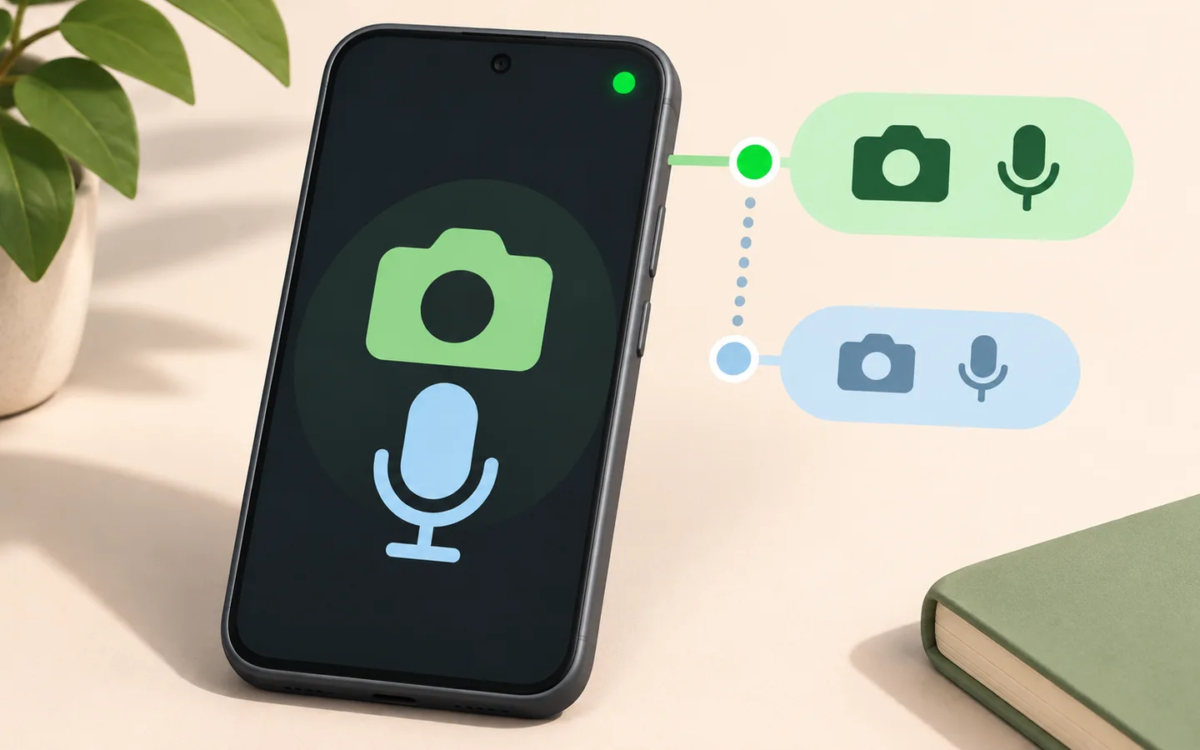
A green camera or microphone indicator tells you that Android is reporting sensor use. To understand what happened, open the indicator’s details and check which app is named. Android’s privacy interface can distinguish ongoing use from a short period of recent use. A recent-access entry means the access has ended, while an active entry can include ongoing use or a brief display window. Android Help · AOSP privacy indicators
Check the app behind the indicator
On supported phones, swipe down while the green indicator is visible, then tap it. Google’s Android instructions say the first tap identifies the app or service using the camera or microphone. A further tap lets you manage its permissions. Some of these controls require Android 12 or later, and the swipe-down route varies across devices. Android Help
Start with the app name and the sensor shown. That gives you a concrete permission to inspect. If the interface reports recent access, use the privacy dashboard to examine the activity history as well. Android Help · Privacy dashboard guide
What active and recent access mean
For Android 12 and later, AOSP’s implementation documentation describes camera and microphone use as active when the system marks it as running or the access is less than five seconds old. That short display window matters when interpreting an indicator immediately after a brief action. AOSP privacy indicators
The same documentation describes recent camera and microphone access as access within the previous 15 seconds when the app is no longer active. Its dialog can list all active apps while showing only one recent-access source, even if several apps accessed these sensors during that recent window. AOSP privacy indicators
These timing windows describe AOSP’s implementation, and the controls and labels on your phone may differ. Check your phone’s actual labels when deciding which permission to change. This guide covers camera and microphone indicators. AOSP privacy indicators
Use the privacy dashboard for a longer history
Open Settings, then Security and privacy or Privacy, and look for Privacy dashboard. You may need to open another Privacy submenu. Choose Camera or Microphone to inspect the apps listed and open an app to update its permission. Privacy dashboard guide
Google documents a 24-hour activity history for Android 12 and a seven-day history for Android 13. Those windows make the dashboard useful when the status-bar indicator has already disappeared. Use the history available on your device when investigating earlier access. Privacy dashboard guide
Change an app’s camera or microphone permission
You can also go directly to Settings → Apps → the app’s name → Permissions. Select Camera or Microphone and inspect the available choices. Google lists options such as allowing access while using the app, asking each time, or denying access. The choices available depend on the permission and device. App permission guide
If you decide an app should lose access, change the specific permission from that screen. You can revisit the same screen when you need to allow access again. Google’s permission manager also groups apps by permission type, which helps when you want to review camera or microphone access across several apps. App permission guide
Find the device-wide controls
Supported phones offer camera and microphone controls in Quick Settings. Swipe down twice and look for the corresponding tiles. If they are absent, use Quick Settings’ Edit or Add control to find and place them. Android Help
Google also documents Settings → Security and privacy → Privacy → Privacy controls, where Camera access and Microphone access can be turned off. If an app cannot use a sensor afterward, check these device-wide controls alongside its individual permission. App permission guide · Android Help
For a quick investigation, identify the named app first, read the active or recent-access information, then use the dashboard or app permissions to decide what access to keep. Android Help · Privacy dashboard guide